How to Delete DMs on Instagram
Blog

The short answer: deleting a chat and unsending a message are different
If you want to delete DMs on Instagram, first decide what you want to remove. Instagram gives you two different actions:
- Delete a chat: removes the entire conversation from your inbox, but it does not remove the conversation from the other person’s inbox.
- Unsend a message: removes one message you sent from the conversation for everyone in the chat.
That distinction matters. Deleting a conversation is mainly inbox cleanup. Unsending is the option to use when you want to retract a particular photo, video or text message you sent.
Instagram changes labels and menu positions occasionally, and the exact steps can vary slightly by device or app version. If you do not see the option described below, update the Instagram app and look for a similarly named action in the conversation menu.
Before deleting anything
Pause if the conversation contains an order detail, agreement, customer question, lead qualification note or other information you may need later. Removing a business conversation just to make the inbox look cleaner can erase useful context from your own view while doing nothing to the recipient’s copy.
If you use Instagram DMs to sell coaching, digital products or services, a crowded inbox is often an organization problem rather than a deletion problem. Try Mochi free for 7 days to organize the real conversations already coming into your business.
How to delete an entire Instagram DM conversation
Use this method when you want a complete chat to disappear from your Instagram inbox.
On iPhone
- Open Instagram and go to your messages.
- Find the conversation you want to remove.
- Swipe left on the conversation, or press and hold it if that is how the menu appears in your app version.
- Choose Delete.
- Confirm the deletion when Instagram asks.
On Android
- Open Instagram and go to your messages.
- Press and hold the conversation you want to remove.
- Tap Delete.
- Confirm your choice.
On a computer
- Open Instagram in your browser and select Messages.
- Open the conversation.
- Select the conversation information control or menu near the top of the chat.
- Choose Delete chat or the equivalent deletion option, then confirm.
Important: deleting a chat removes it from your inbox only. The other participants can still have the messages in their inboxes. It also does not retract messages you sent.
Instagram does not generally provide a standard select-all control for deleting every DM conversation at once. Be cautious with browser extensions or third-party services promising bulk deletion, especially if they ask for your Instagram password or use an unofficial connection.
How to unsend one Instagram message
Use Unsend when you want to remove a particular message you sent from both sides of a conversation.
- Open Instagram and go to your messages.
- Open the relevant conversation.
- Press and hold the message on mobile, or open its options menu on a computer.
- Choose Unsend.
- Repeat the process for any other messages you want to retract.
Unsending removes the selected message from the chat, but it cannot guarantee that nobody saw it. The recipient may have already opened the conversation, read a notification preview, saved the information or captured it another way. Treat unsending as removal from the conversation, not as a promise that the message was never seen.
Can you unsend someone else’s message?
No. You can unsend messages that you sent. You cannot use the unsend control to remove another participant’s message from their account. Deleting the whole chat can remove your view of the conversation, but their copy may remain.
Can deleted Instagram messages be recovered?
Do not assume that a deleted chat or unsent message can be restored. Instagram features and retention behavior can change, but deletion should be treated as permanent from your normal inbox. Downloading your account information is useful for keeping a copy of available account data; it should not be treated as a guaranteed recovery method for messages that have already been deleted or unsent.
For a business inbox, clean up the process before deleting conversations
A personal inbox may only need occasional cleanup. A business inbox is different. The conversation you are about to delete may contain a qualified lead, an unanswered objection, a promised follow-up or the reason someone was not ready to buy yet.
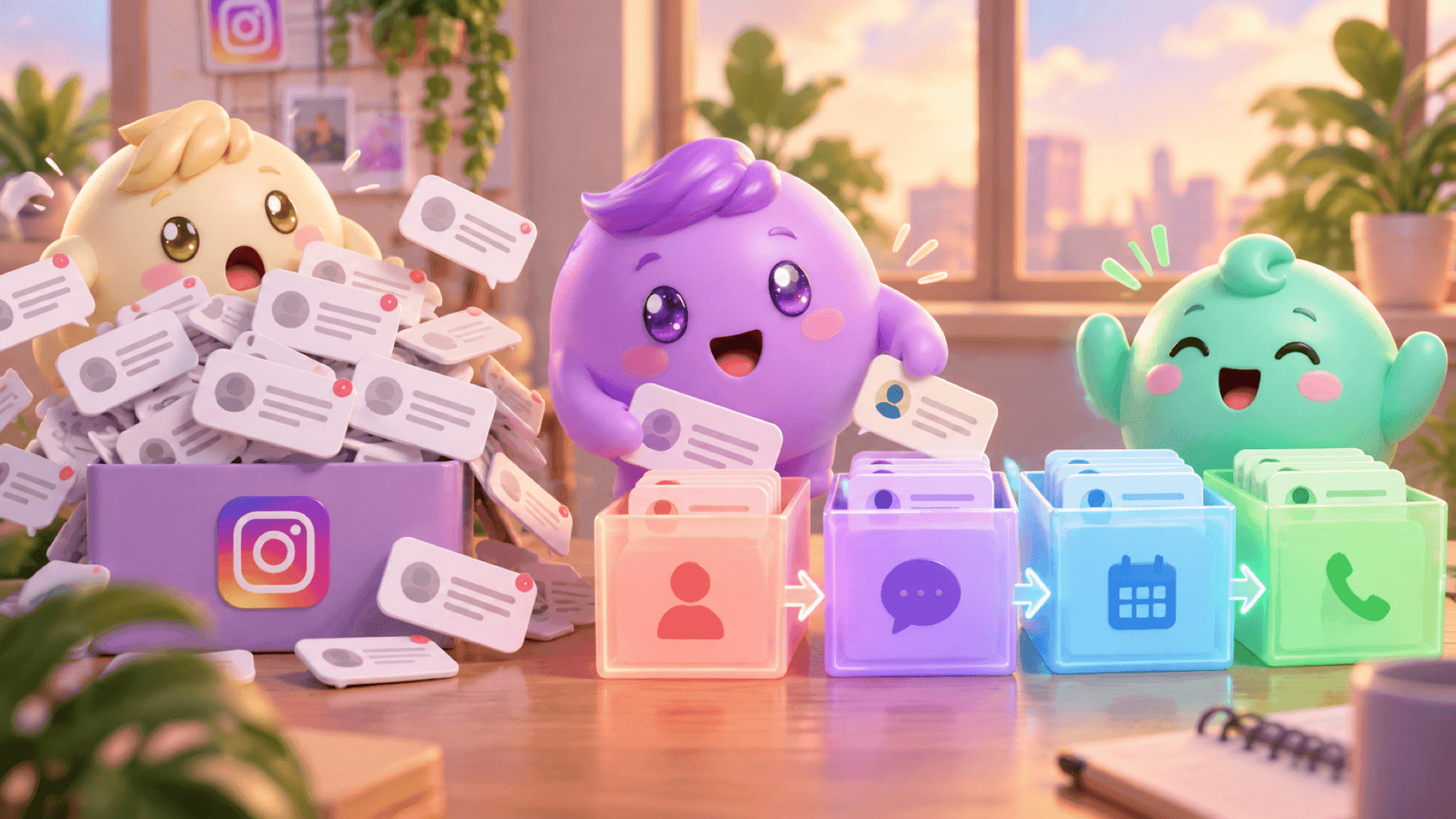
When dozens of conversations arrive from Stories, comments, content and ads, deleting old-looking chats does not fix the underlying problem. The useful approach is to separate conversations by what needs to happen next:
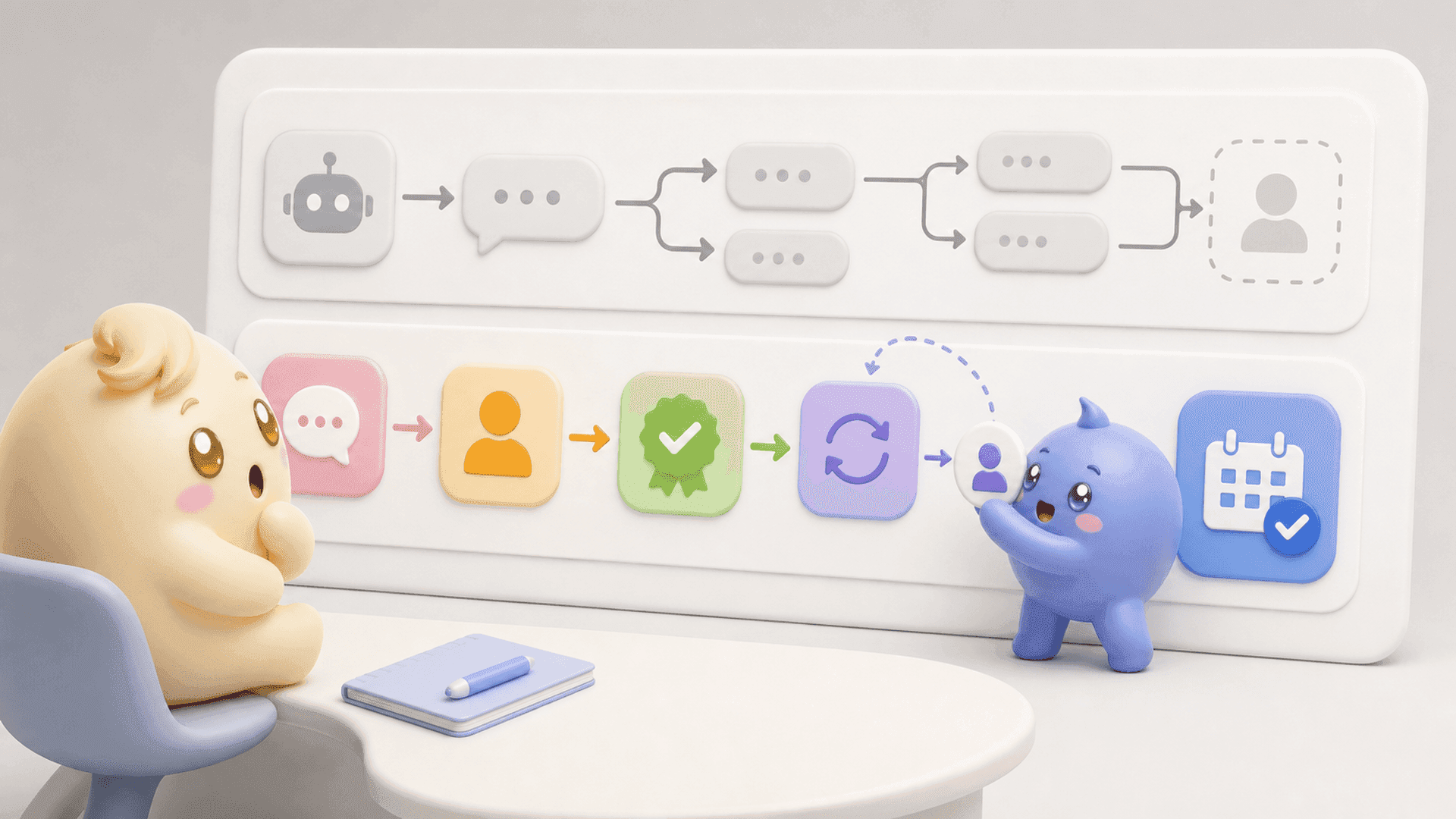
- Keep qualified people easy to find.
- Give every important conversation a clear owner.
- Separate active leads from chats that need a follow-up.
- Preserve the context the next person needs before replying.
- Track whether a calendar link was sent, opened or turned into a booking.
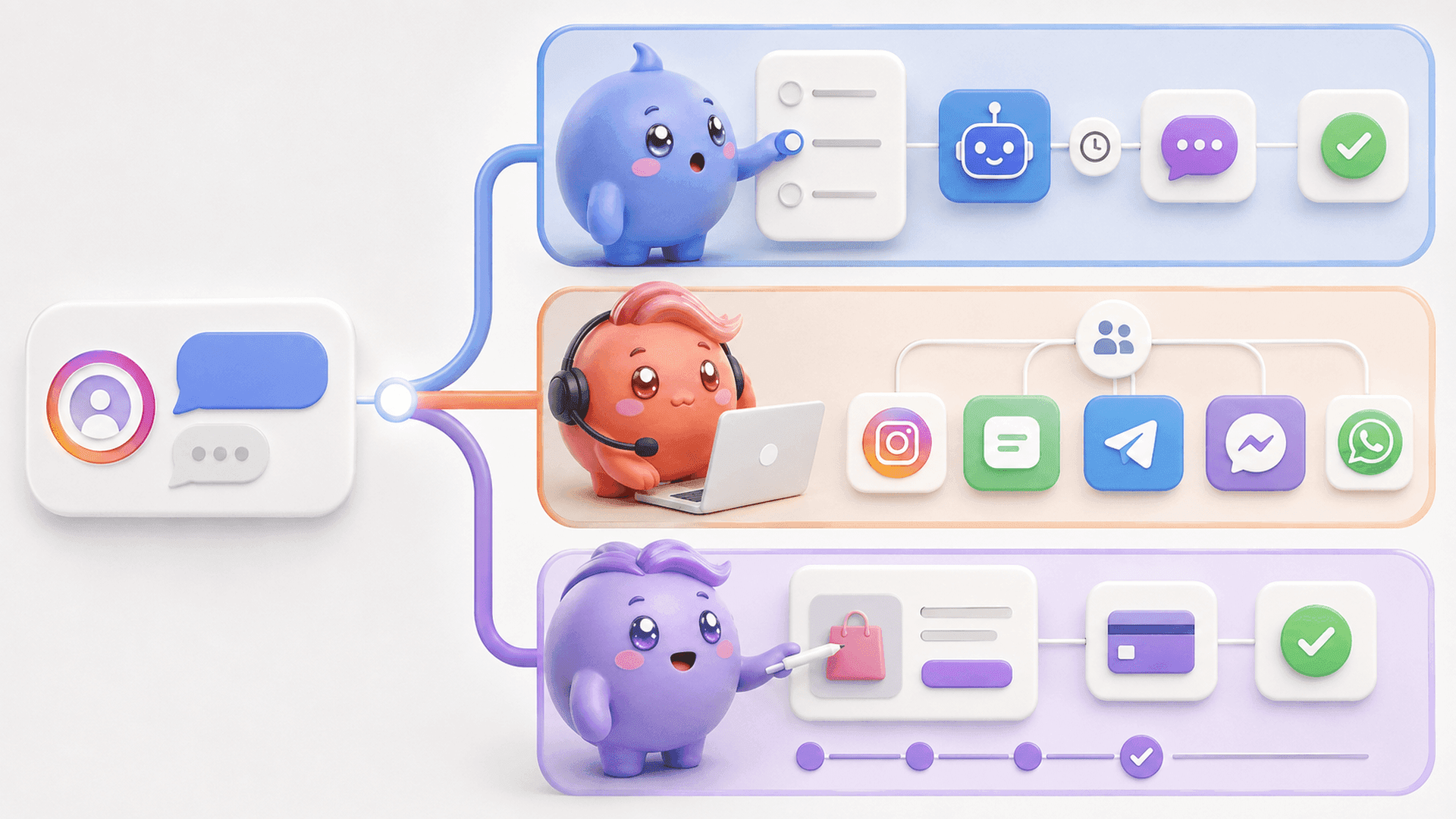
Mochi turns the Instagram inbox into a DM sales system for coaches, creators and digital-product businesses. Its Priority Inbox and Lead Filters help the person handling DMs find qualified leads and follow-ups instead of opening random conversations from newest to oldest. Conversation Summaries preserve the important context, so the team can understand what someone said without scrolling through the full history.
The goal is not to keep every chat forever. It is to avoid deleting or overlooking a valuable conversation simply because a busy inbox made it look like clutter.
A quick decision checklist
- Want the whole conversation gone from your inbox? Delete the chat.
- Want to retract one message you sent? Unsend that message.
- Want to erase the other person’s complete copy? Deleting your chat does not do that.
- Want a cleaner sales inbox without losing lead context? Organize conversations by priority, stage, owner and next action.
If important leads are getting buried underneath random new messages, try Mochi free for 7 days and organize the conversations already inside your Instagram inbox.