How to Delete an Instagram Message: Delete vs. Unsend Explained
Blog

How to delete an Instagram message quickly
There are two different actions people often mean when they ask how to delete an Instagram message:
- Delete a conversation: removes the entire chat from your inbox, but does not remove it from the other person’s inbox.
- Unsend a message: removes one message you sent from the conversation for everyone in the chat.
If you only want to clean up your inbox, delete the conversation. If you sent the wrong message and want to remove that specific DM from the chat, use Unsend.
Instagram’s labels and menu placement can vary slightly by device and app version. Before confirming an action, read the prompt carefully so you know whether you are deleting a chat from your inbox or unsending a message for everyone.
How to delete an entire Instagram conversation
In the Instagram mobile app
- Open Instagram and go to your direct messages.
- Find the conversation you want to remove.
- On iPhone, swipe left on the conversation. On Android, press and hold the conversation.
- Select Delete and confirm if prompted.
This removes the conversation from your inbox. The other participant can still see the chat and its messages unless they delete it from their own inbox.
On Instagram in a web browser
- Open Instagram and select Messages.
- Open the conversation.
- Open the conversation details or information menu.
- Select Delete chat, then confirm.
Deleting a conversation is useful when you no longer need it, but it is not the same as retracting everything you said. It also does not let you delete another person’s copy of the chat.
Can you delete multiple Instagram conversations at once?
Bulk deletion is not consistently available across every Instagram account or device. If your inbox does not show a multi-select option, conversations must be deleted individually. Be cautious with browser extensions or unofficial services that ask for your Instagram login and promise to erase messages in bulk.
How to unsend one Instagram DM
In the mobile app
- Open the conversation containing the message.
- Press and hold the message you sent.
- Select Unsend and confirm if Instagram asks you to.
On a computer
- Open the conversation in Instagram Messages.
- Move your pointer over the message and open its options menu.
- Select Unsend and confirm.
Unsending removes that message from the conversation for its participants. However, it cannot guarantee that nobody saw it. The recipient may already have read the message, seen it in a notification or saved a copy. Removing a DM should therefore be treated as correcting the conversation, not as proof that the message was never seen.
Can you unsend someone else’s message?
No. You can unsend messages that you sent. You cannot remove another participant’s message from their account. If a message is abusive, deceptive or otherwise violates Instagram’s rules, use Instagram’s reporting and blocking controls instead of relying on deletion.
Can a deleted Instagram message be recovered?
Do not assume a deleted chat or unsent message can be restored. If a conversation contains an order detail, customer question, agreement or important sales context, save the necessary business information through an appropriate process before removing it. Avoid third-party “recovery” tools that request account credentials or promise guaranteed access to deleted DMs.
If Instagram DMs are an important sales channel for your business, deleting conversations just to make the inbox feel manageable can hide the real problem. Try Mochi free for 7 days to organize the leads already inside your Instagram inbox.
For businesses, a cleaner inbox is not always a better inbox
A creator may post a Story and receive dozens of replies. The inbox fills with compliments, questions, new leads and ongoing sales conversations. Deleting old chats can make the screen look calmer, but it can also remove context your team still needs.
A qualified lead may have already explained their problem, confirmed they are interested or asked about booking a call. If that conversation is deleted or overlooked, the business may lose a valuable opportunity simply because newer messages took its place.
Before deleting business conversations, use a simple checklist:
- Confirm whether the person is still waiting for a reply.
- Check whether they were qualified or asked to take the next step.
- Make sure any promised follow-up has happened.
- Confirm who on the team owns the conversation.
- Keep any information the business legitimately needs before removing the chat.
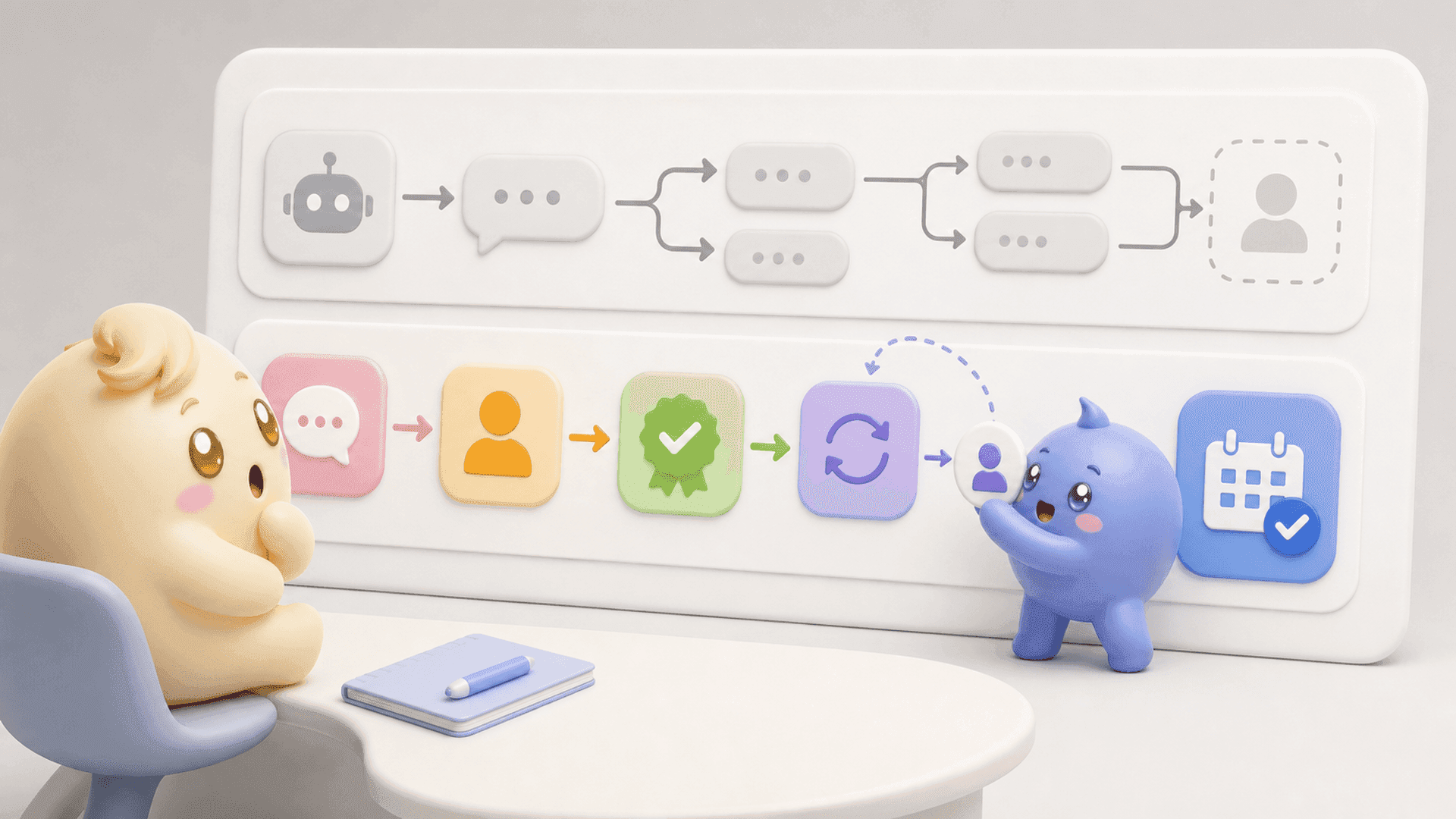
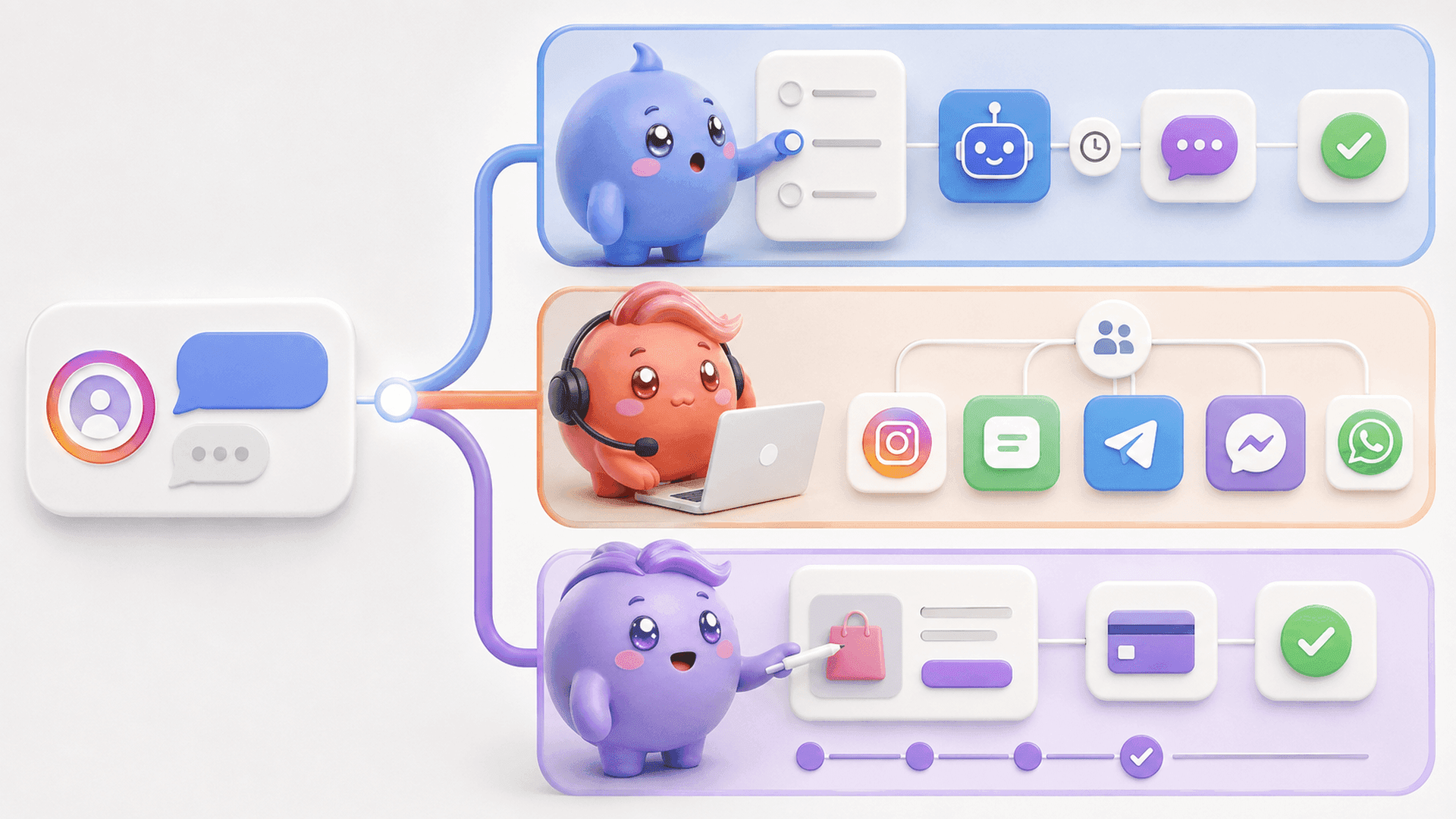
Mochi gives coaches, creators and digital-product businesses a stronger way to handle this problem. Its Priority Inbox helps the person handling DMs start with qualified leads and follow-ups instead of working only from the newest message downward. Lead Filters can surface conversations by stage, owner, date, source or tag, while Conversation Summaries preserve the important context needed for the next reply.
The goal is not to keep every conversation forever. It is to avoid deleting or forgetting a good lead because the inbox became crowded. A proper system lets the team separate conversations that need action from those that are genuinely finished.
If you want a clearer inbox without losing sight of qualified conversations, try Mochi free for 7 days and manage the people already messaging your business.